
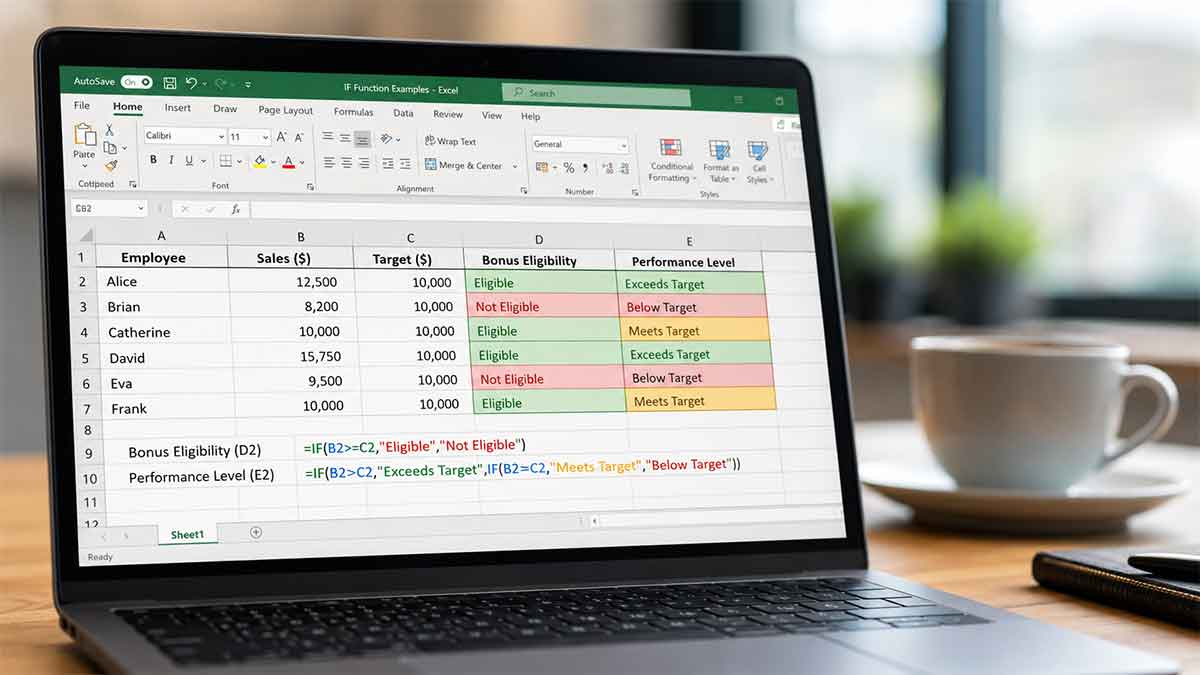

How the IF Function Works in Excel – The IF function in Excel checks whether a condition is true or false — and returns a different result depending on the answer. That’s the whole thing. Everything else is just knowing how to write the condition, what to return, and when to nest multiple IFs together. If you’ve been avoiding it because it looks intimidating, this guide will change that fast.
Here’s the short version of the syntax before we go deeper:
=IF(logical_test, value_if_true, value_if_false)You give Excel a question, tell it what to do if the answer is yes, and tell it what to do if the answer is no. That’s it. The rest of this article is just showing you every situation where that pattern comes up — and how to handle each one cleanly.
Table of Contents
Breaking Down the IF Function Syntax
Let’s use a concrete example before anything else. Say you have a list of test scores in column B and you want column C to say “Pass” if the score is 60 or above, and “Fail” if it’s below that.
=IF(B2>=60, "Pass", "Fail")Excel reads this as: Is the value in B2 greater than or equal to 60? If yes, return “Pass.” If no, return “Fail.”
Every IF formula follows this exact three-part structure:
- logical_test — the condition you’re checking (B2>=60)
- value_if_true — what Excel returns when the condition is met (“Pass”)
- value_if_false — what Excel returns when it isn’t (“Fail”)
Text values go inside double quotes. Numbers don’t. If you want to return a number, just type it without quotes. If you want the cell to stay empty on one branch, use "" (two quote marks with nothing between them).
Logical Operators You Can Use in the Test
The logical test is the heart of the formula. You’re asking Excel to compare two things. Here are the operators available to you:
=— equal to<>— not equal to>— greater than<— less than>=— greater than or equal to<=— less than or equal to
Most beginner mistakes happen right here. People write = when they mean =IF(A1="Yes"...) and forget that a text comparison needs quotes around the text. Numbers don’t. So =IF(A1=100, ...) is correct, but =IF(A1="100", ...) is comparing against the text string “100,” not the number — and those are different things in Excel’s mind.
Returning Numbers, Text, Blanks, and Formulas
One thing that trips people up early: you’re not limited to returning static text or numbers. The value_if_true and value_if_false arguments can be anything — including other formulas.
Returning a blank cell
=IF(A2="", "", A2*0.1)If A2 is empty, return nothing. If it has a value, calculate 10% of it. This keeps your spreadsheet clean instead of showing zeros everywhere a value hasn’t been entered yet.
Returning a formula result
=IF(C2="Manager", B2*1.15, B2*1.05)If the person is a Manager, apply a 15% bonus. Otherwise, apply 5%. Both branches are live calculations, not hardcoded values. This kind of formula is extremely common in payroll and budgeting work.
Nested IF: Handling Multiple Conditions
What if you have more than two possible outcomes? That’s where nested IFs come in. You put another IF function inside the value_if_false slot to add a second branch.
=IF(B2>=90, "A", IF(B2>=80, "B", IF(B2>=70, "C", IF(B2>=60, "D", "F"))))This grades a score across five possible outcomes. Excel evaluates left to right: first it checks if the score is 90 or above. If not, it moves to the next IF and checks 80 or above. And so on until it either finds a match or hits the final fallback.
A few important rules with nesting:
- Excel allows up to 64 nested IF levels (in practice, anything past 4 or 5 gets hard to read and debug).
- Every opened parenthesis needs a closing one. This is the #1 source of formula errors.
- Order matters — put the most restrictive condition first (highest value if checking downward, lowest if checking upward).
If your nested IFs are getting unwieldy, Excel’s IFS function (available in Excel 2019 and Microsoft 365) is a cleaner alternative. It works like a list of condition-result pairs without the pyramid structure.
=IFS(B2>=90,"A", B2>=80,"B", B2>=70,"C", B2>=60,"D", TRUE,"F")The TRUE at the end acts as the catch-all fallback — it always evaluates to true, so it handles anything that didn’t match the earlier conditions.
Combining IF with AND / OR
Sometimes a single comparison isn’t enough. You might need to check two conditions simultaneously. That’s where AND and OR slot in as the logical_test argument.
Using AND — both conditions must be true
=IF(AND(B2>=60, C2="Submitted"), "Eligible", "Not Eligible")The student must have a score of 60 and have submitted the assignment. If either condition fails, they’re not eligible.
Using OR — at least one condition must be true
=IF(OR(D2="Senior", D2="Manager"), "Eligible for Bonus", "Not Eligible")Anyone who is either a Senior or a Manager qualifies. Only one needs to be true.
You can combine both: =IF(AND(OR(D2="Senior", D2="Manager"), B2>=12), "Eligible", "Not Eligible") — eligible only if the role matches AND tenure is 12+ months.
IF with Other Functions: VLOOKUP, SUM, ISNUMBER, and More
The IF function becomes genuinely powerful when you combine it with other Excel functions. Here are the most useful pairings:
IF + ISNUMBER / ISBLANK / ISERROR
=IF(ISBLANK(A2), "Missing", "Complete")Great for data validation — flag cells that haven’t been filled in yet.
=IF(ISERROR(VLOOKUP(A2, D:E, 2, 0)), "Not Found", VLOOKUP(A2, D:E, 2, 0))This wraps a VLOOKUP in an IF to suppress the ugly #N/A error and replace it with a clean “Not Found” label. (In newer Excel versions, IFERROR does this more neatly: =IFERROR(VLOOKUP(A2,D:E,2,0), "Not Found"))
IF + COUNTIF
=IF(COUNTIF(B:B, A2)>0, "Duplicate", "Unique")Check whether a value already exists somewhere in column B. Incredibly useful for deduplication work.
IF + SUM (array formula)
=IF(SUM(B2:B10)>1000, "Over Budget", "Within Budget")Evaluate the total of a range and label the result accordingly. Works cleanly as part of a dashboard summary row.
Common IF Function Errors and How to Fix Them
If your IF formula isn’t working, one of these is almost certainly the reason:
#VALUE! error
Usually means you’re comparing incompatible types — like checking if a text cell is greater than a number. Verify the data type in the cells you’re referencing.
Formula returns wrong branch
Double-check your logical operator. >=60 includes 60; >60 does not. That off-by-one distinction matters a lot in grading or threshold scenarios.
Text comparisons are case-insensitive
Excel’s IF treats “yes”, “Yes”, and “YES” as identical. If case matters, you need to wrap your test in the EXACT() function: =IF(EXACT(A2, "YES"), ...)
Too many or too few parentheses
Every function call — including nested IFs — needs its own closing parenthesis. Excel will usually highlight mismatched brackets and sometimes offer to autocorrect, but it’s worth building the habit of counting them manually.
Returning TRUE or FALSE instead of your intended text
If you forgot to add the value_if_true and value_if_false arguments, Excel will literally return the boolean TRUE or FALSE. Make sure all three parts of the syntax are filled in.
Practical IF Function Examples by Use Case
Theory is great — working examples are better. Here are real-world applications organized by domain:
Sales and Targets
=IF(C2>=D2, "Target Met", "Below Target")Column C is actual sales, column D is the quota. Clean, no math required.
=IF(C2>=D2, C2*0.1, 0)Commission only pays out if the quota is met. Otherwise, zero.
HR and Attendance
=IF(E2>=90, "Eligible", IF(E2>=75, "Review Required", "Not Eligible"))Attendance-based eligibility with a middle tier for borderline cases.
Inventory Management
=IF(B2<10, "Reorder Now", IF(B2<25, "Low Stock", "OK"))Flags items that need immediate attention versus items that are simply running low.
Finance and Budgeting
=IF(B2-C2<0, "Deficit", IF(B2-C2=0, "Break Even", "Surplus"))A three-way budget status check — deficit, break even, or surplus — in a single formula.
IF vs. IFS vs. SWITCH: Knowing Which to Use
Excel has evolved, and the classic IF isn’t always the right tool anymore. Here’s a quick comparison:
- IF — Best for binary (yes/no) decisions or when you have 2–3 conditions.
- IFS — Better than nested IFs when you have 4+ conditions. More readable. Available in Excel 2019 and Microsoft 365.
- SWITCH — Best when checking one value against a list of exact matches. Cleaner than both for that specific scenario.
=SWITCH(A2, "Mon","Monday", "Tue","Tuesday", "Wed","Wednesday", "Other")If you’re on an older version of Excel without IFS or SWITCH, nested IF is still perfectly functional — just harder to maintain at scale. Just like never updating your apps eventually catches up with you in broken features, sticking to outdated formula patterns when better options exist costs you time and readability.
Tips for Writing Cleaner IF Formulas
A few habits that separate people who struggle with IF from people who write it instinctively:
Use named ranges for readability
Instead of =IF(B2>=60, "Pass", "Fail"), name the range “Scores” and write =IF(Scores>=60, "Pass", "Fail"). Easier to audit six months later.
Break complex logic into helper columns
If your nested IF is getting long, split the conditions into separate columns and reference those. The final formula becomes =IF(AND(F2, G2), "Approved", "Denied") — where F2 and G2 contain the sub-conditions. Much easier to debug.
Document your logic
Excel doesn’t have inline comments for formulas, but you can add a Notes column or use the cell comment feature (right-click → New Comment) to explain what a formula is checking. Future-you will be grateful.
Test edge cases
Specifically test: the exact boundary value, one above the boundary, one below, a blank cell, and a text value where a number is expected. These are the cases that expose formula logic errors. It’s the same principle that applies in any conditional system — whether you’re writing spreadsheet formulas or figuring out what happens if the edge condition you’ve been ignoring suddenly matters.
Frequently Asked Questions
Can IF return another formula?
Yes. Any Excel formula can go inside either the value_if_true or value_if_false argument. You can return a SUM, VLOOKUP, AVERAGE, or even another nested IF.
What’s the difference between IF and IFERROR?
IFERROR is a shorthand specifically for handling error values — it returns one result if the formula errors out and another if it succeeds. It doesn’t evaluate arbitrary logical conditions. Use IF when you’re comparing values; use IFERROR when you’re protecting against formula errors.
Can the IF function check multiple cells at once?
Not directly in a standard formula — but you can use array formulas (Ctrl+Shift+Enter in older Excel) or modern dynamic array functions to apply IF logic across a range. SUMIF, COUNTIF, and AVERAGEIF are also purpose-built for conditional calculations across multiple cells.
Why does my IF formula return 0 instead of blank?
If your value_if_false is 0 or missing and the condition is false, Excel defaults to 0. To return a blank, explicitly use "" as the false value: =IF(A2>10, A2*2, "").
Is IF case-sensitive?
No. =IF(A2="yes", ...) matches “yes”, “YES”, “Yes”, and “YeS” equally. For case-sensitive comparisons, use EXACT: =IF(EXACT(A2,"yes"), ...).
The IF Function Is a Building Block, Not a Final Destination
Once you’re comfortable with IF, you’ll start seeing it everywhere — inside SUMIF, COUNTIF, AVERAGEIF, inside array formulas, inside conditional formatting rules. The logic is always the same: ask a question, define what happens when the answer is yes, define what happens when it’s no.
The real skill isn’t memorizing syntax. It’s learning to translate a business question — “who qualifies for the bonus,” “which items need reordering,” “which rows have missing data” — into a condition Excel can evaluate. Once that translation becomes natural, the syntax takes care of itself.
Work through a few of the examples above in an actual spreadsheet. Change the threshold. Break the formula on purpose. See what error it throws. That hands-on friction is what makes the concept stick in a way that reading never fully does — not unlike how skipping the fundamentals in any system, whether that’s skipping routine maintenance on your car, eventually reveals itself in a much messier way down the line.
Now open Excel and build something.